
One inbox, and a person behind every reply
Comments and direct messages land in one list. You assign them, tag them, answer them, and let approved rules take the routine ones. A person writes or approves every reply that goes out.
Today only the practice channel feeds the inbox. No live channel does yet, and this page says so wherever it matters.
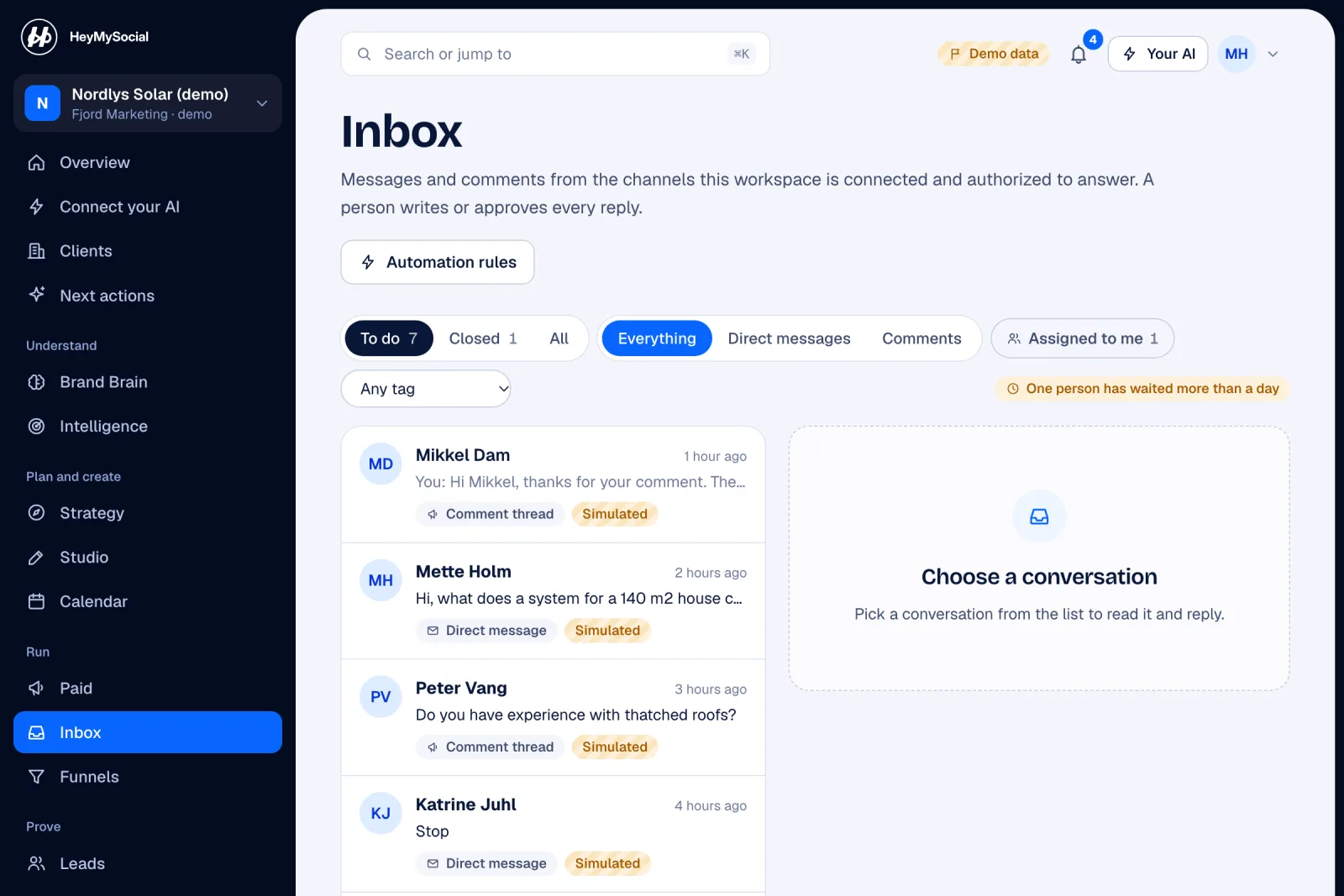
Triage that shows who has it
The list separates what is waiting from what is done: To do, Closed and All, then Direct messages or Comments, then Assigned to me and a tag filter. A conversation where the other person wrote last is set in bold, and the screen counts how many people have waited more than a day.
Open a conversation and the header holds the three things triage needs: who it is assigned to, its status (open, pending or closed) and its tags. It also shows whether you may still answer, because platforms only allow a reply for a limited time after the person last wrote.
- Assign to anyone in the workspace who may work the inbox, or to nobody.
- Tags are yours to choose. A rule can add them too.
- When the reply window has closed, the composer is locked and says why.
- Assignments and status changes are written to the audit log.
A suggested reply that states no facts
Suggest a reply gives you a starting point, not a finished answer. It reads the last message, recognises one of five situations (a complaint, a price question, a request for a time, a thank-you, or a general message) and fills a fixed template in your workspace's content language, shaped by the tone in your approved brand profile.
It never states a price, a date or a number. Where one is needed, the text asks for more detail or says a colleague will answer. The suggestion is checked against your Brand Brain like any other text, and the result is shown under the box.
No model writes it. For a fuller draft, your own assistant can read the conversation and save a draft with draft_reply. Either way the text waits as a draft until a person presses Send reply.
How Brand Brain checks a textA rule does nothing until someone approves exactly what it says
Automation rules live under Automation rules in the Inbox. Each one reads left to right: when this happens, if it matches, say this, do that.
-
1
Write the rule
Choose the trigger (a comment contains a keyword, or a new direct message arrives), the words to look for, the reply template and one action. Saving keeps it as a draft. Anyone on your own team who works the inbox can write one.
-
2
A manager approves it
Review and approve shows the channel, the trigger, the words, the hourly limit and the exact text. Only a workspace manager can press Approve and switch on.
-
3
It acts inside its limits
An approved, active rule runs once per incoming comment or message, never on your own replies, and leaves further matches to a person once it reaches its hourly limit.
-
4
Any edit sends it back
Change the words, the text, the action, the channel or the limit and the rule returns to draft. It stays silent until someone approves the new version.
The limits every rule runs inside
These are not settings you can forget to switch on. They are checked, in this order, each time a rule matches.
Approval of the exact rule
The approval is stored for one version of the rule. If the rule no longer matches what was approved, it does not act and the log says "The rule was changed after it was approved."
The stop button
Stop all automation halts every rule in the workspace at once. Matching events are still logged, as blocked. A manager starts it again.
Opt-out
A message that is only a stop word, such as "stop" or "unsubscribe", puts the person on the suppression list straight away, whether or not any rule exists.
The suppression list
Every send and every rule asks the list first. Only a fingerprint of each entry is stored, with a masked hint so you can recognise it. Managers keep it under Settings.
Hand over to a person
Give a rule words such as "complaint" or "refund". When one appears, the rule does nothing itself: the conversation is marked pending, tagged and assigned to the person you named.
An hourly limit and a log
Each rule has its own limit per hour. Past it, events are left for a person. The log lists every match with what the rule did, or why it did not.
What a rule may do, and what it may not
The last four are shown in the rule builder as "Not available, by design", each with its reason. The server refuses them too.
| Action | Available | Why |
|---|---|---|
| Reply to the comment | Yes | Comments only, with the approved template. {first_name} and {business} are the only things filled in. |
| Draft a reply for a person | Yes | The draft waits in the conversation, labelled as coming from a rule. A person edits and sends it. |
| Assign to a person | Yes | To someone who may work the inbox in this workspace. |
| Add tags | Yes | So the conversation shows up under the right filter. |
| Send a direct message to the commenter | No | Moving a public comment into a private message needs consent and platform approval that HeyMySocial does not have. |
| Message someone who has not written first | No | Unsolicited direct messages are against platform rules. |
| Send one message to many people | No | Bulk direct messages are against platform rules. |
| Reply after the platform's message window | No | Platforms only allow replies inside their window. |
What your assistant can do in the inbox
It can read conversations, sort them, and prepare replies and rules. It cannot send a reply or approve a rule. Text from the other person reaches the assistant marked as untrusted, so it is read as data and never followed as an instruction.
draft_reply
Draft a reply for a person to send
get_conversation
Read one inbox conversation
list_automation_rules
List inbox automation rules
list_conversations
List inbox conversations
manage_conversation
Assign, tag or set the status of a conversation
save_automation_rule_draft
Draft an inbox automation rule
simulate_practice_message
Receive a simulated practice message
What is true today
The inbox is finished as a workflow and waiting for a live source. Every connection and its state.
Questions about the inbox
Can I answer my Facebook or Instagram messages here today?
What is the practice channel good for, then?
Can a rule send a direct message when someone comments a keyword?
Who can approve a rule?
Does the suggested reply use AI?
How do I take someone off the suppression list?
Keep reading
Try the routine before the first real message arrives
Connect the practice channel under Settings, Connections; the demo workspace already has it. Receive a practice comment, answer it, then write a rule and see what the log says.