
One address, whichever assistant you use
HeyMySocial runs no AI model. You bring the assistant you already use, give it one address, and it works inside your workspace as you: with your role, in the workspaces you can open. Pick yours below for the exact steps.
The same steps are in the app, on the Connect your AI screen, with your own key already filled in.
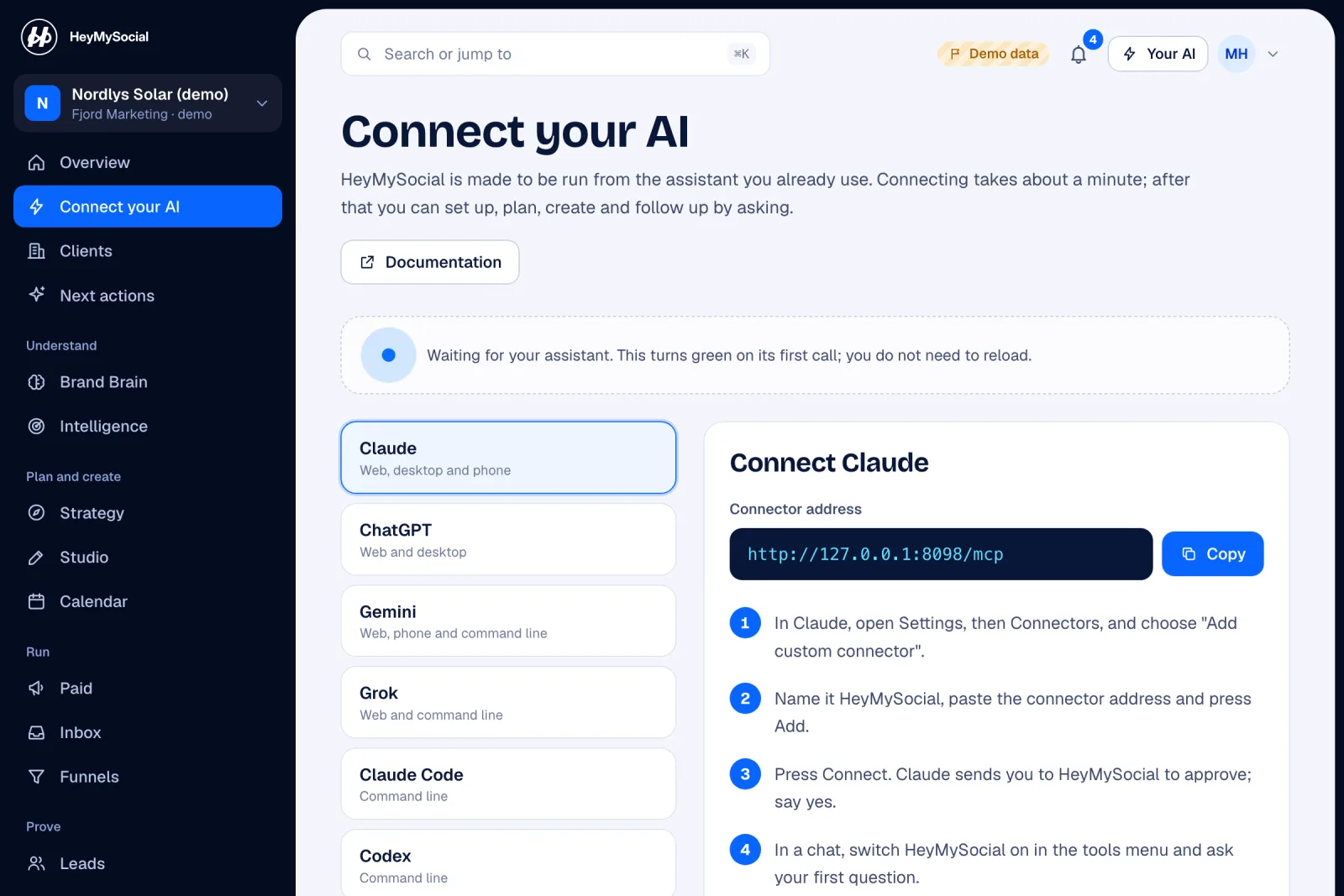
Steps for your assistant
Each page has the steps as the app shows them, things to ask first, and what we have and have not tested with that assistant.
Claude
Add HeyMySocial as a custom connector in Claude, or with one command in Claude Code. The steps, what to ask first, and what we have tested with it.
ChatGPT
Add HeyMySocial to ChatGPT under Developer mode, or to Codex with one command. The steps, a campaign from one sentence, and what we have tested.
Grok
Connect Grok on grok.com with a sign-in, or the Grok command line with one command. The steps, what to ask about your results, and what our full run found.
Gemini
Two routes for Gemini: a custom app in the Gemini web app, or the Antigravity command line with a key. What is checked on our side, and what is not yet.
Code tools
Connect a command-line assistant or an editor with a personal key: one command for Claude Code and Codex, one settings block for Cursor and VS Code.
How connecting works
There are two ways in. Both end in the same place.
Sign in from the assistant
Assistants with a connector screen (Claude, ChatGPT, Grok on the web and the Gemini app) take the address https://heymysocial.com/mcp. The assistant sends you to HeyMySocial, you read what it may and may not do, and you press Connect. No key is copied anywhere.
Or paste one command with a personal key
Command-line assistants and editors (Claude Code, Codex, the Grok command line, Antigravity, Cursor and VS Code) take a key that starts with hms_mcp_. Connect your AI makes the key and puts it into a ready command. The key is shown once, and only a hash of it is stored.
It works as you
Either way the assistant acts as the person who connected it. It sees the workspaces you can open and has your role in each. What you may not do in the app, it may not do either. Your email address has to be confirmed before anything can connect.
You watch it connect
Connect your AI turns green on the assistant's first call, without a reload. It lists every connected assistant and key with when it was first and last used and how many calls it has made, each with its own Disconnect button.
What a connected assistant does first
The connection carries its own instructions, so you do not have to explain HeyMySocial to your assistant.
-
1
It asks who you are
whoami gives it your name and language, the workspaces you can open with your role in each, and what is left of this month's assistant calls.
-
2
It finds where you stand
get_started lists the setup steps, which of them are done, and the tool for the next one. A new workspace begins with the basics, the brand and one offer.
-
3
It reads the method
social_guide holds the playbook: the order to work in, the three evidence tiers, and what it must never conclude from something a competitor published.
-
4
It searches for the rest
64 of the 126 tools are listed when it connects. For a less common job it describes the job in a few words to
search_toolsand runs what it finds.
What we have tested with each
We ran the whole job with real assistants against the live service. Where a cell says something has not been done, it has not been done.
| Assistant | How it connects | Whole job done with it | In the assistant's own app |
|---|---|---|---|
| Claude | Sign-in, or a key in Claude Code | Full run with Claude Code, twice. | Sign-in flow checked with a script that plays the app; adding it by hand in the app has not been done by us yet. |
| ChatGPT | Sign-in, or a key in Codex | Full run with Codex, the command line that uses ChatGPT's model. | Sign-in flow checked with a script that plays the app; adding it by hand in the app has not been done by us yet. |
| Grok | Sign-in, or a key in the Grok command line | Full run with the Grok command line. | Sign-in flow checked with a script that plays the app; adding it by hand in the app has not been done by us yet. |
| Gemini | Sign-in in the Gemini app, or a key in Antigravity | Not run with a Gemini model yet. Google's command line connected and listed the tools. | Sign-in flow checked with a script that plays the app; adding it by hand in the app has not been done by us yet. |
| Cursor / VS Code | A key in the editor's settings, or sign-in | No full run yet. | Sign-in flow checked with a script for the address VS Code uses; not tried in an editor. |
As tested on November 24, 2026 against the live service. "Whole job" means from an empty workspace to a scheduled, measured campaign using only the tools.
What stays with a person
The line is drawn at what leaves HeyMySocial, not at what an assistant may touch inside it.
Approving what goes out
The assistant asks with request_approval and gets a review link to give you. You approve the exact text, picture, channel and time in the app. Only then does schedule_content work.
Budgets
No code changes an ad or a budget. An assistant can write a budget request. Another person who may approve budgets decides in the app, and the change itself is made by hand in the ad platform.
Messages and invitations
A reply in the inbox is saved as a draft that a person sends. An invitation is checked and prepared, and a person presses Send invitation under Settings, Members.
Connections and secrets
Live channels are connected by a person in the app. Tokens, keys and passwords are never returned to an assistant. Where one is needed, it gets a link for you to open instead.
Decisions in the workspace
Approving a fact, an offer or a strategy can go through the assistant, but only when it states that you saw the exact thing and said yes in the conversation. Without that the tool refuses and says what to show you.
The off switch and the record
Disconnect an assistant or revoke a key on Connect your AI and it stops at once. What it changed is in the audit log, under your name and marked as done through an assistant.
Before you pick one
Which assistant should I use?
Does connecting cost extra?
My assistant is not on the list. Can I connect it?
Authorization header. Signing in without a key is open to the assistants named on this page, to the editors and to clients running on your own machine. We have not tested anything beyond the table.Can I connect more than one?
What does HeyMySocial send to the assistant's maker?
Keep reading
Connect yours in about a minute
Create an account, open Connect your AI and pick your assistant. The demo workspace you are offered at setup is there to try it on.